
Add the clients and reusable services used by the selected company for its invoicing operations.
Clients and services in EventFlow FE PRO are maintained within the company currently being managed. Records created here belong to that company and are not automatically shared with other companies in the FE PRO account.
1. Add a client to the company
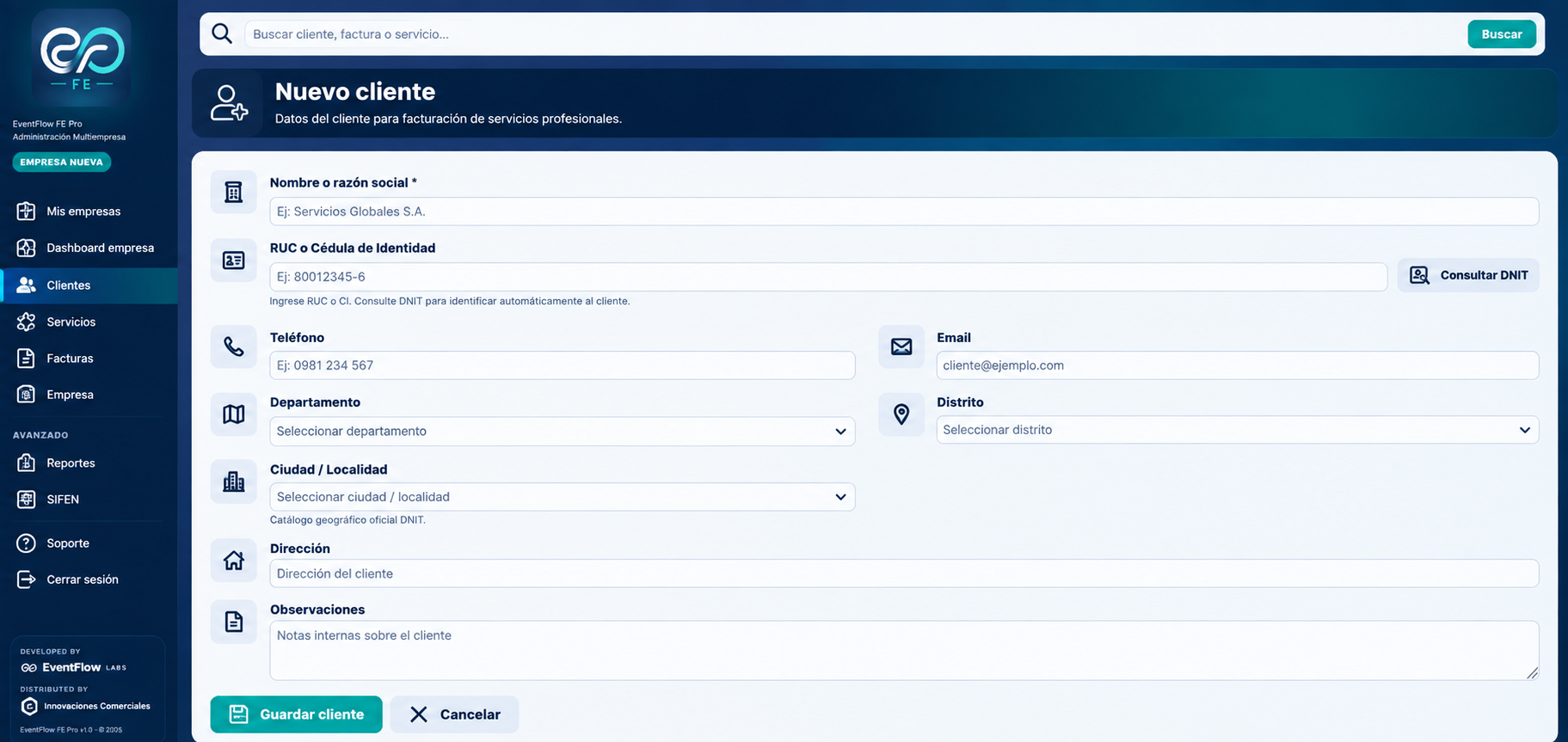
Open Clients from the selected company workspace and create a new client.
A client represents the recipient to whom the company will issue invoices. The client record is associated with the company currently being managed in EventFlow FE PRO.
Select the image to open the full-size view.
Client identification
Under New client, complete the recipient identification information:
- Name or business name. Name of the individual or legal entity that will receive the invoice.
- RUC or Identity Card. Taxpayer RUC or identity document of the recipient.
- Consult DNIT. When applicable, use the DNIT lookup to identify and validate available taxpayer information.
The client is the recipient of the invoice. It is distinct from the company configured as issuer before SIFEN.
Contact information
Complete the available contact information when applicable:
- Telephone
- Address
These fields remain associated with the client record of the selected company.
Geographic information
Select the corresponding geographic information:
- Department
- District
- City / Locality
EventFlow FE PRO uses the official DNIT geographic catalog available in the application for these fields.
Internal observations
Use Observations to record internal information relevant to the client when needed.
These notes support the company’s operational management and are stored with the client record.
Save the client
Select Save client after completing the required information.
Once saved, the client becomes available for invoice preparation within the selected company.
Company scope
Clients are company-specific. Creating a client while working inside one company does not create that client for other companies managed through the same FE PRO account.
2. Add a service to the company
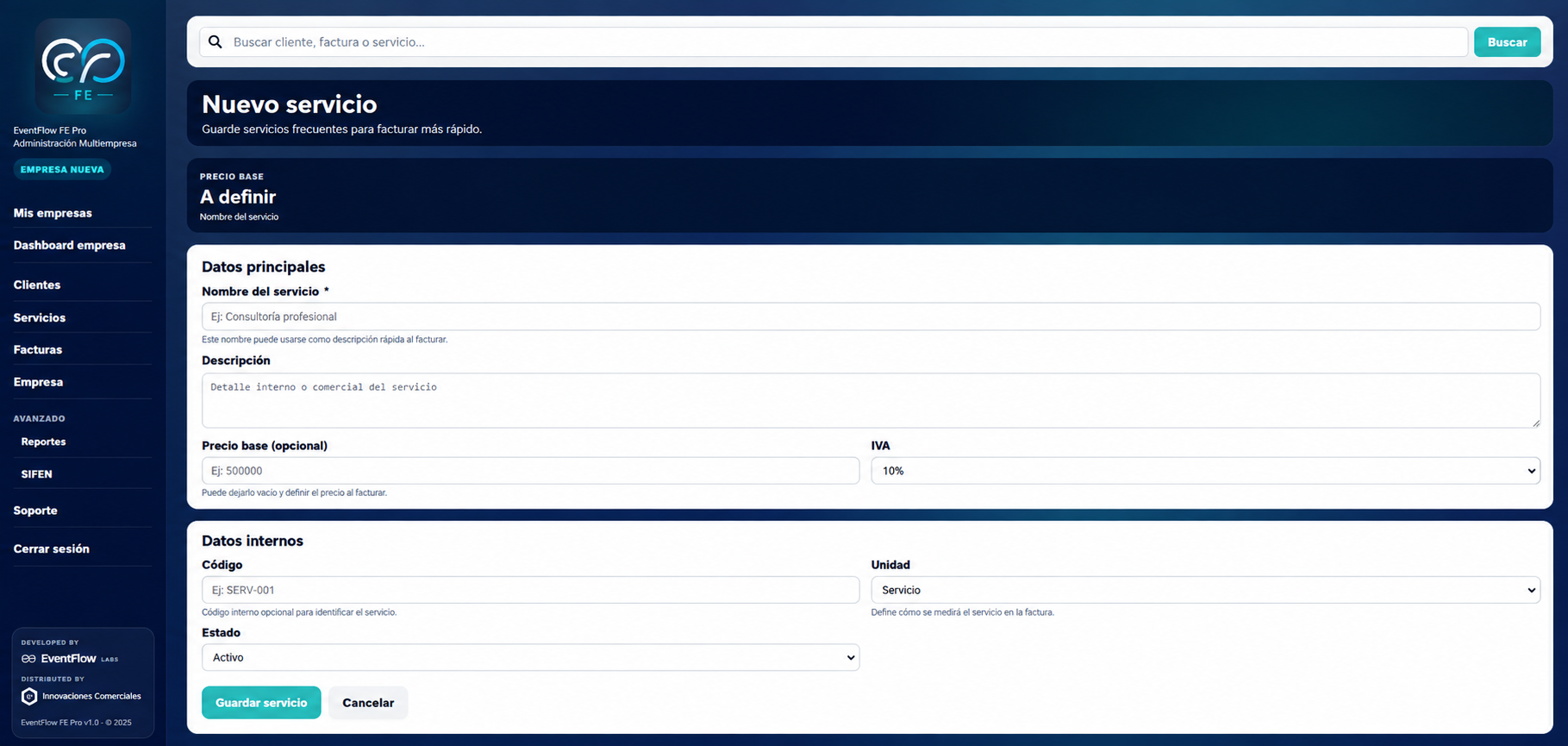
Open Services from the same company workspace and create a new service.
Services are reusable billing concepts maintained by the selected company. They can later be selected when preparing invoices, reducing repetitive entry for frequently billed services.
Select the image to open the full-size view.
Main service data
Under Main data, complete the service information:
- Service name. Name used to identify the service and as a quick description during invoicing.
- Description. Internal or commercial description of the service.
- Base price. Optional reference price for the service. It can be left empty when the amount will be defined at invoice time.
- VAT. Tax rate associated with the service.
The base price acts as reusable billing information; the final amount used in an invoice is determined during the corresponding invoicing operation.
Internal service data
Under Internal data, configure the information used to organize and identify the service:
- Code. Optional internal identifier for the service.
- Unit. Defines how the service is represented or measured on the invoice.
- Status. Indicates whether the service is currently available for use.
Save the service
Select Save service after completing the configuration.
Once saved, the service becomes available for invoicing only within the selected company.
Company scope
Services are also company-specific. A service created for one company is not automatically available to another company managed through the same FE PRO account.
Clients and services ready
With the company configured, its SIFEN settings validated, and its clients and reusable services registered, the company is ready to begin regular invoice preparation.
The next step is to issue the first invoice.