
Create, review and issue an invoice from the workspace of the selected company.
Invoices in EventFlow FE PRO are created within the currently selected company. The issuer configuration, available clients, reusable services and fiscal settings used during the process correspond to that company.
1. Create a new invoice
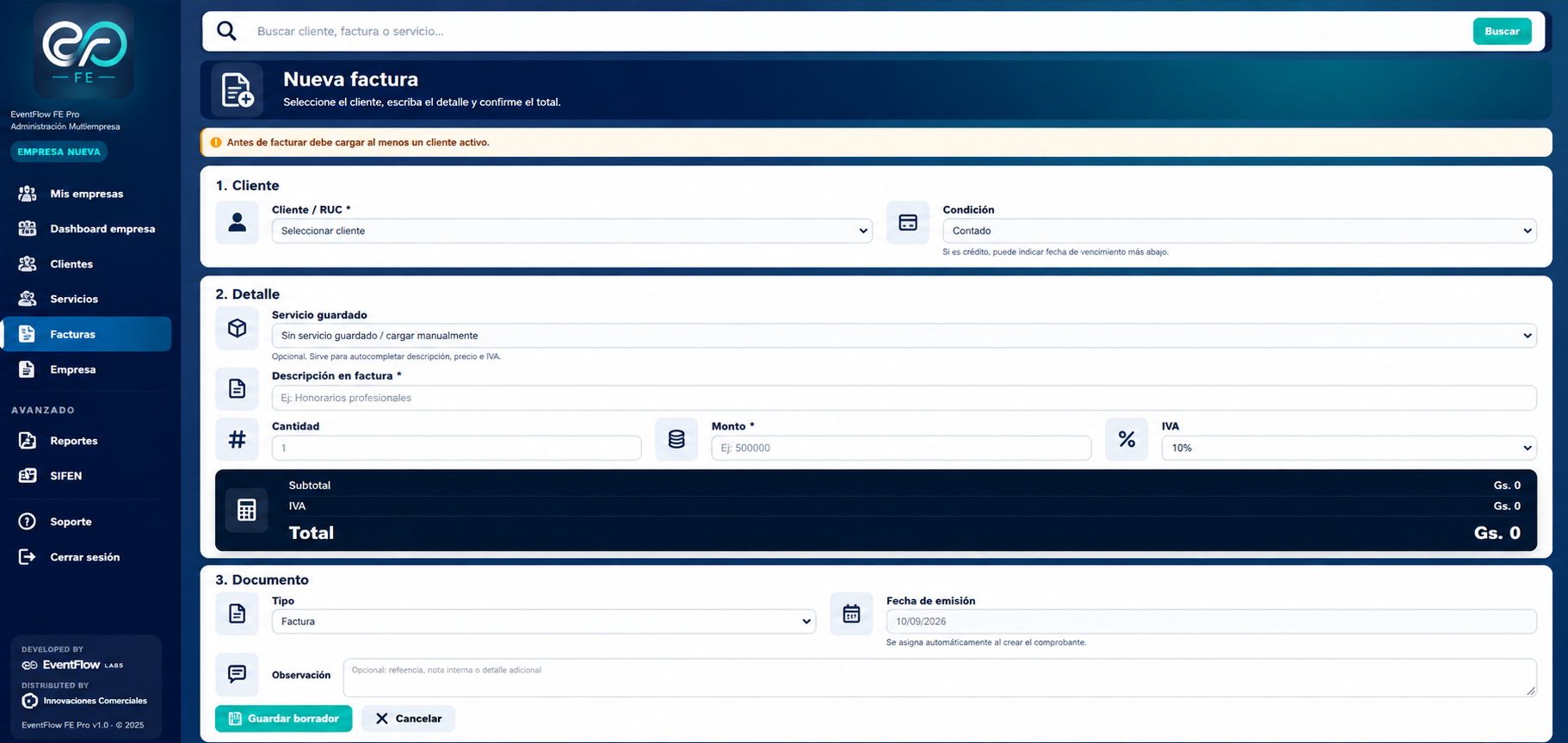
Open Invoices from the company workspace and create a new invoice.
Under Client, select the recipient and the applicable payment condition.
Under Detail, complete the billing information:
- Saved service. Select a reusable service previously registered for the company, or enter the detail manually.
- Invoice description. Description that will appear on the invoice.
- Quantity. Quantity applicable to the item.
- Amount. Amount assigned to the item.
- VAT. Applicable tax rate.
When a saved service is selected, EventFlow FE PRO can reuse its configured information during invoice preparation.
The Subtotal, VAT and Total are calculated from the invoice detail.
Select the image to open the full-size view.
2. Review the document information
Under Document, review:
- Type. Document type being prepared.
- Issue date. Date assigned to the document.
- Observation. Optional reference, note or additional information.
Before continuing, verify the selected client, payment condition, invoice detail, VAT and total.
3. Save the invoice as a draft
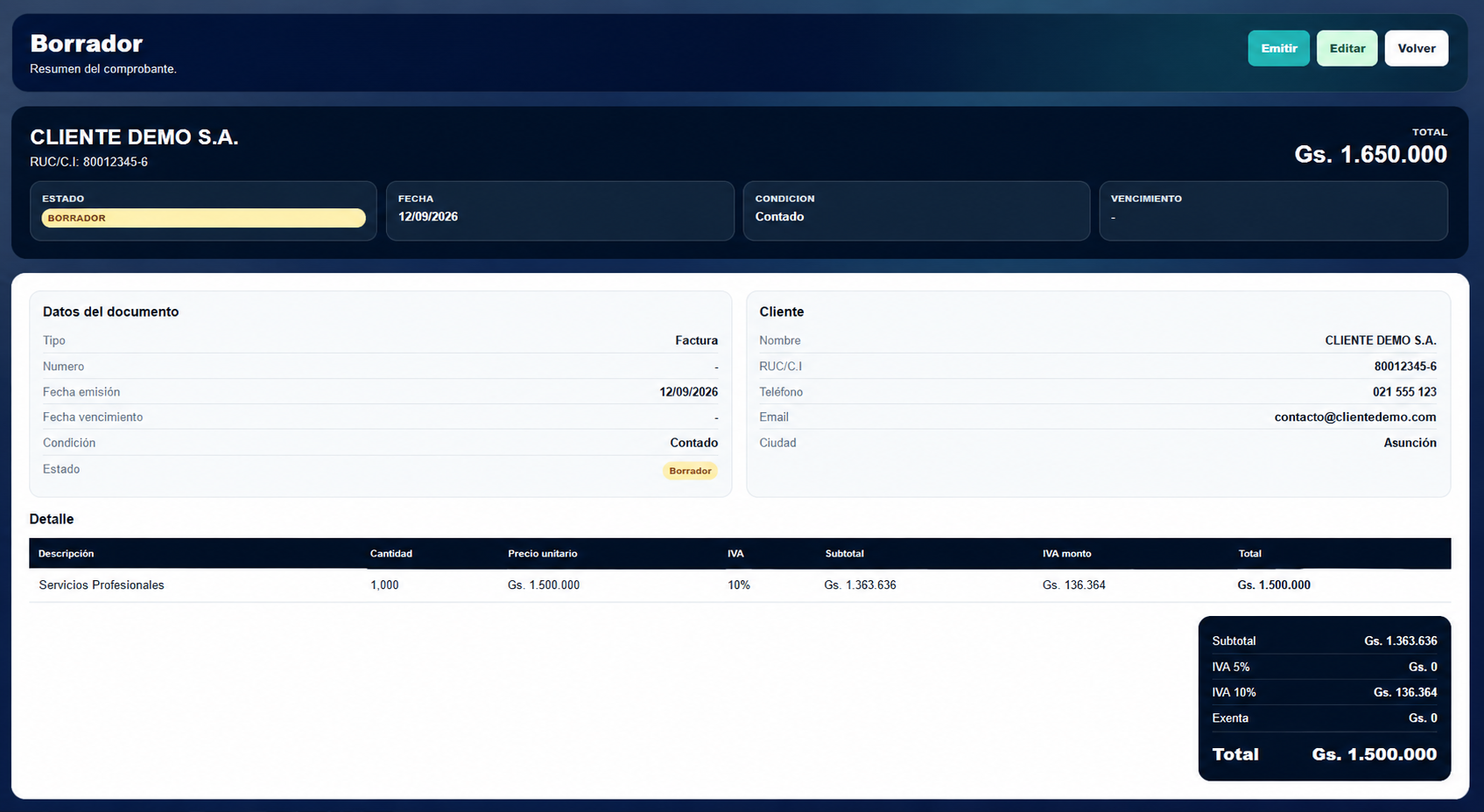
Select Save draft to create the invoice in DRAFT state.
The draft view provides the prepared document for review before issuance, including the client, document information, payment condition, invoice detail, VAT and totals.
While the document remains in DRAFT, it can still be reviewed and edited.
Select the image to open the full-size view.
4. Issue the invoice
After reviewing the draft, select Issue.
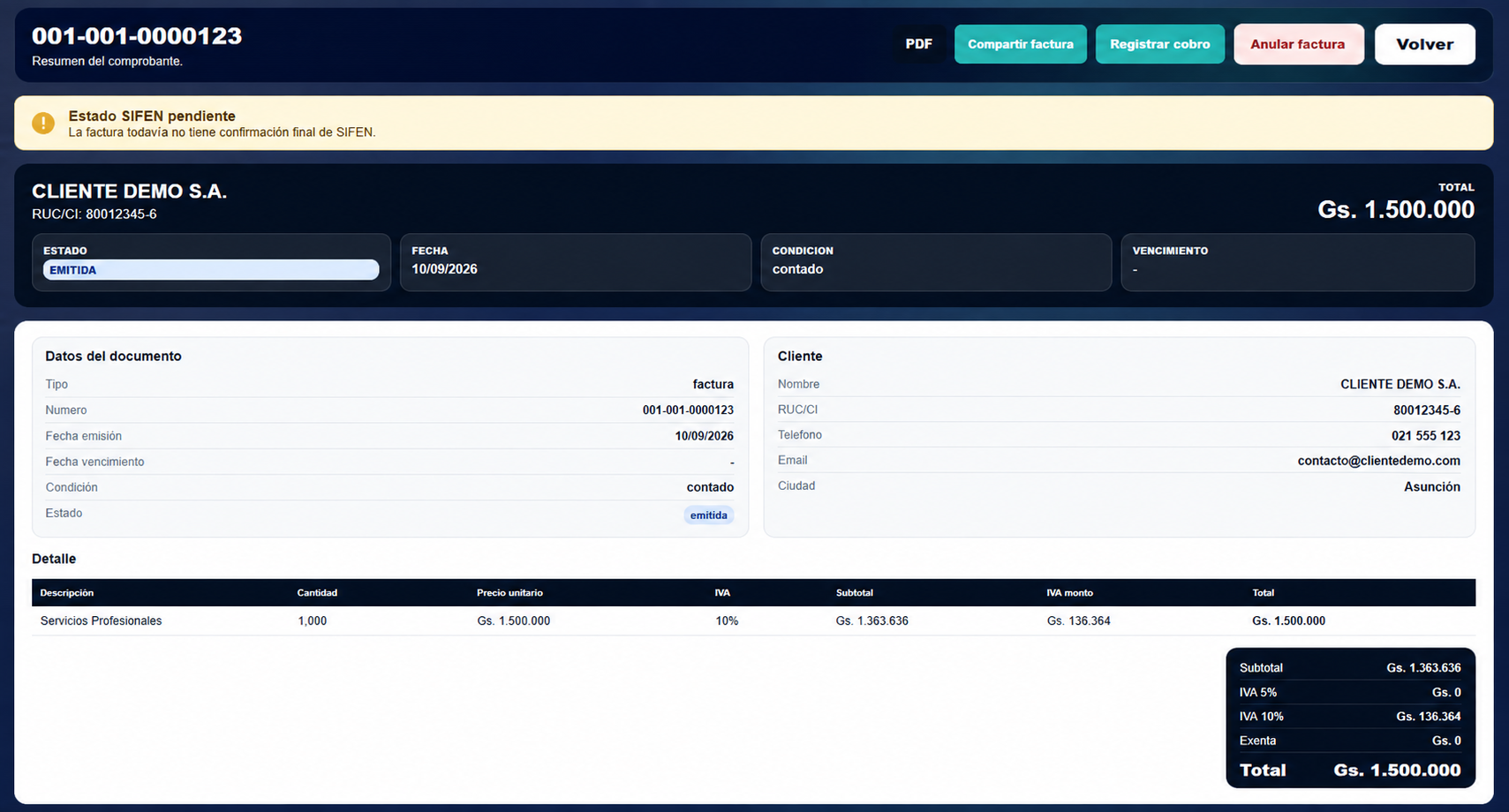
The invoice leaves the editable DRAFT state and enters the issuance and fiscal processing flow. EventFlow FE PRO assigns the corresponding document number and displays the invoice as ISSUED.
Select the image to open the full-size view.
5. Check the issued state
ISSUED identifies the document state within EventFlow FE PRO. It does not represent the final fiscal result returned by SIFEN.
While the corresponding authority result remains unavailable, the invoice displays SIFEN pending.
SIFEN status pending
The invoice does not yet have final confirmation from SIFEN.
Issued does not mean approved by SIFEN.
The fiscal result is handled separately and may only be treated as confirmed once the corresponding SIFEN result is available.
Invoice issued
The document has progressed through:
New invoice → DRAFT → ISSUED
Its fiscal result remains a separate state of the process.
The next step is to check the SIFEN result and, when the applicable fiscal outcome is available, continue with the invoice actions enabled for that result.