
Save the services you invoice and client information for reuse when creating invoices.
Services
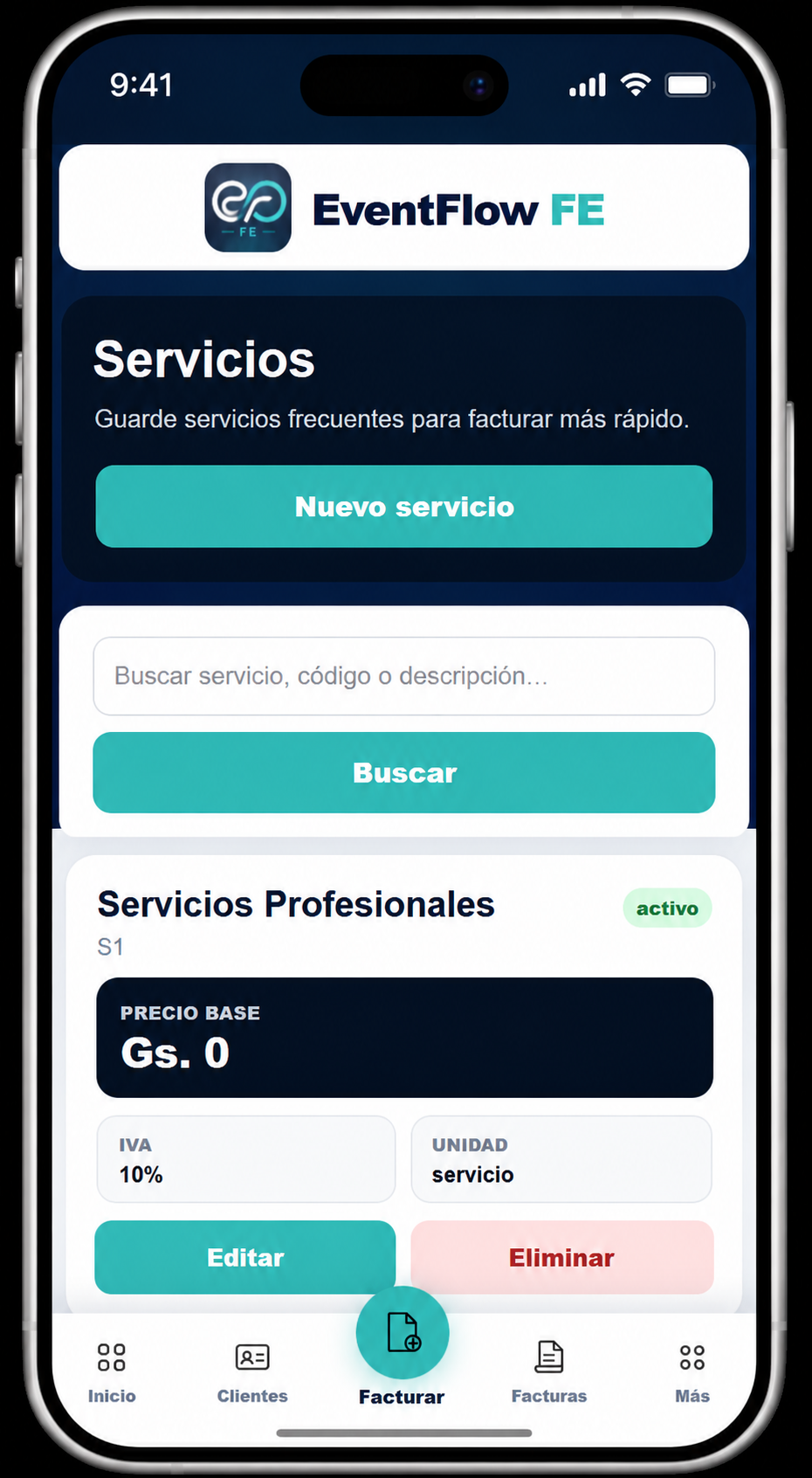
Open Services to view the services already saved in EventFlow FE.
You can search the list by service name, code or description. Each saved service displays its available billing information, including the base price, VAT and unit.
Select New Service to add a service that you invoice regularly.
Add a service
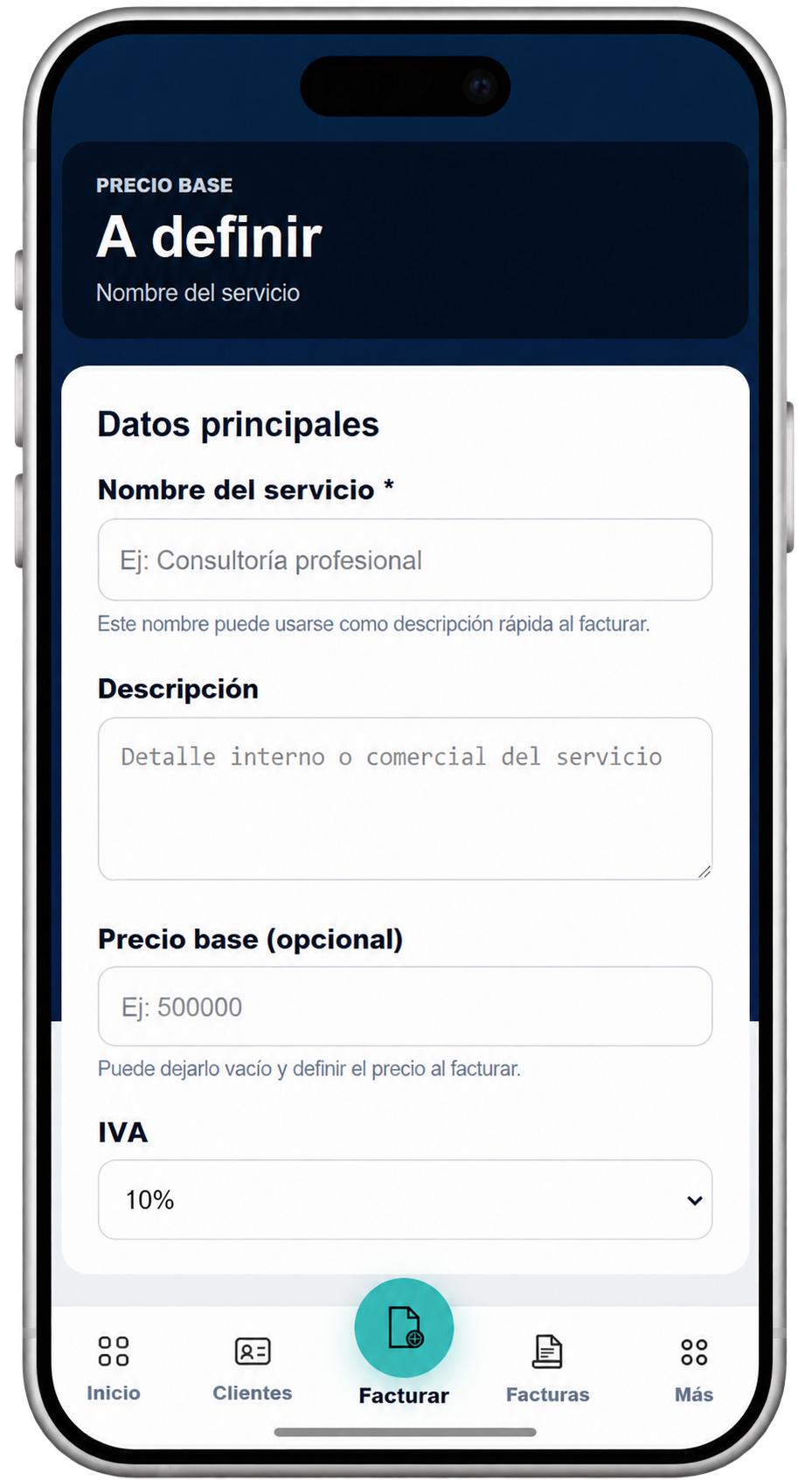
Complete the service information shown in the form:
- Service name. Enter the name used to identify the service when invoicing.
- Description. Add an internal or commercial description when needed.
- Base price. You can define a usual price or leave it empty and enter the amount when creating the invoice.
- VAT. Select the applicable VAT rate.
Save the service when the information is complete. It will then be available for selection when creating invoices.
Clients
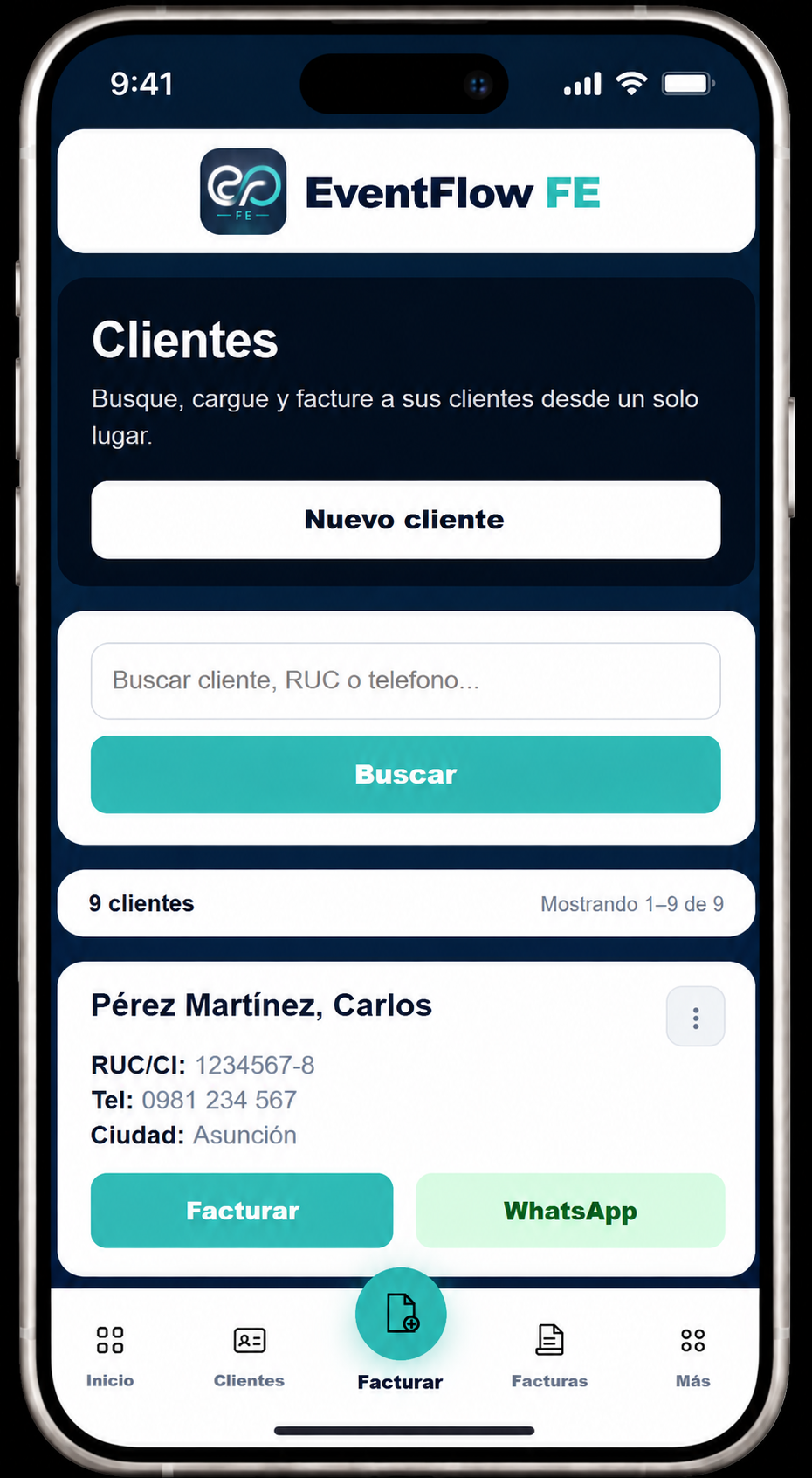
Open Clients to view the clients already registered in EventFlow FE.
You can search by client name, RUC or telephone number. From the client list, EventFlow FE also provides direct access to the available client actions, including starting an invoice.
Select New Client to register a client.
Add a client
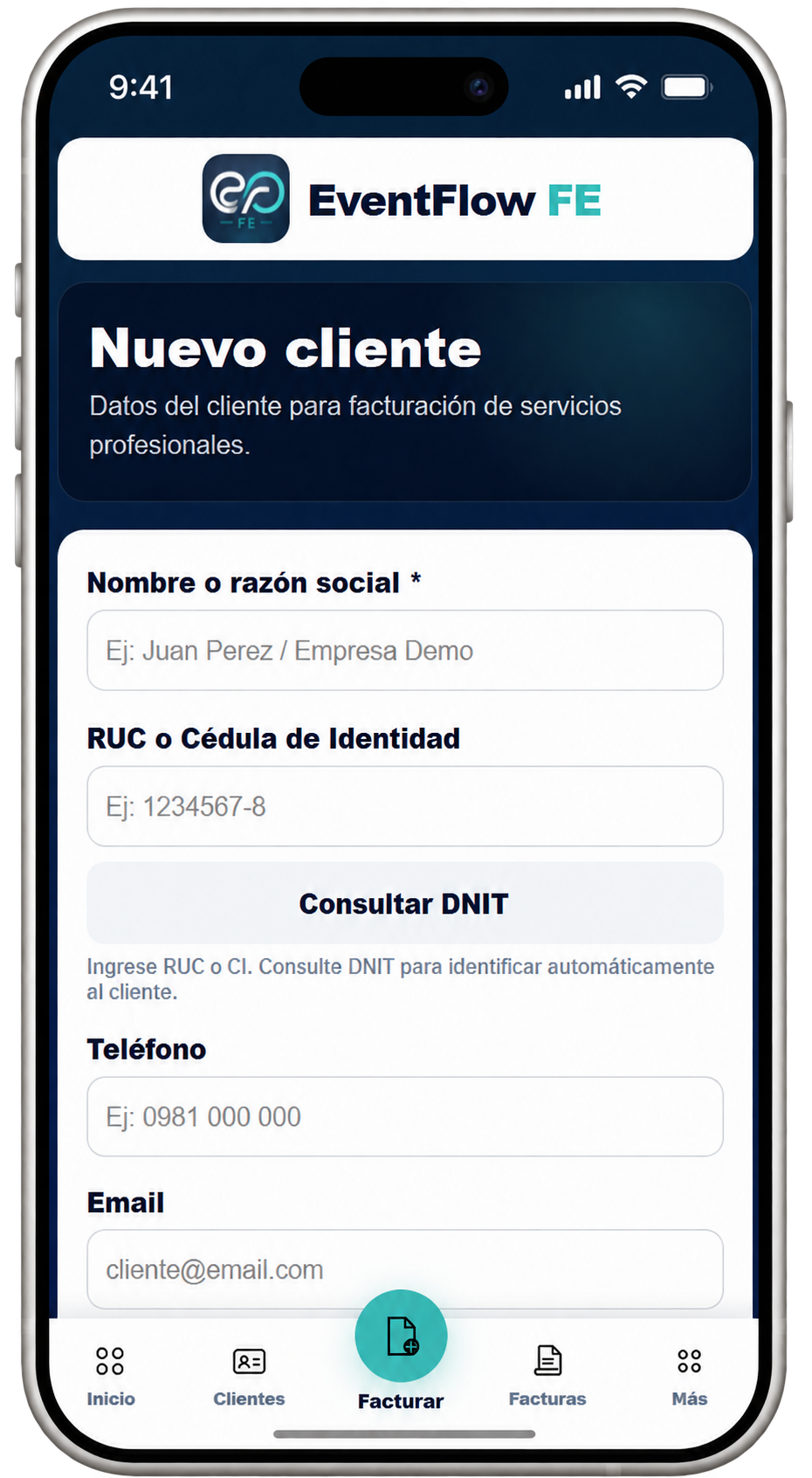
Enter the client’s basic information:
- Name or company name. Enter the name used for the client.
- RUC or Identity Card. Enter the client’s RUC or identity document when applicable.
- DNIT lookup. After entering the RUC or CI, select Consult DNIT to retrieve available identification information.
- Telephone. Add the client’s contact number.
- Email. Add the email address used for client contact.
Location and additional information
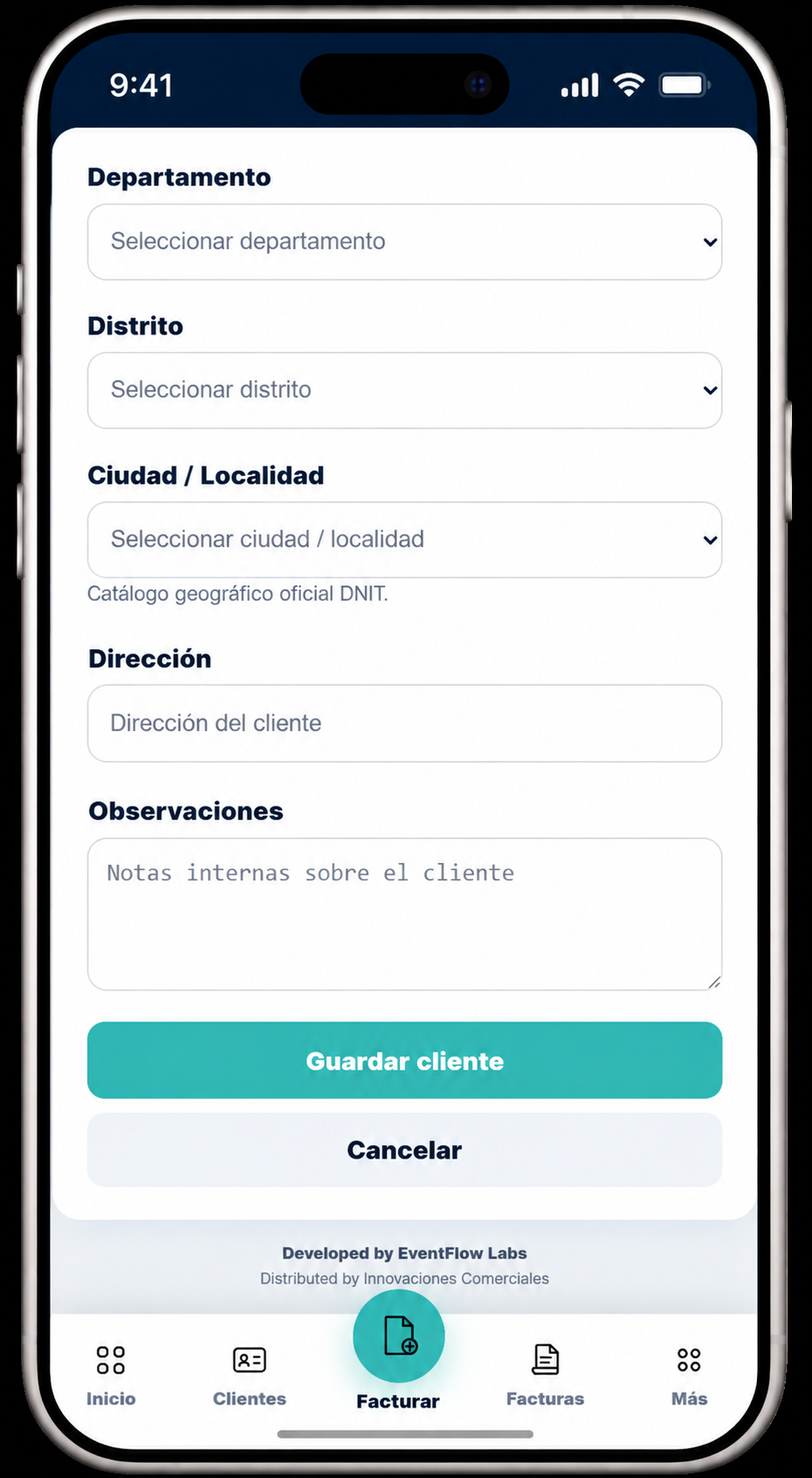
Complete the remaining information when applicable:
- Department. Select the department.
- District. Select the corresponding district.
- City / Locality. Select the city or locality from the official DNIT geographic catalog.
- Address. Enter the client’s address.
- Observations. Add internal notes when needed.
Select Save Client to store the client and make the information available when creating invoices.
Ready to create an invoice
Once your services and clients are available in EventFlow FE, you can use them when creating your first invoice.