
Create your first invoice by selecting a saved client, completing the invoice detail, reviewing the document and issuing it through EventFlow FE.
1. Client and Condition
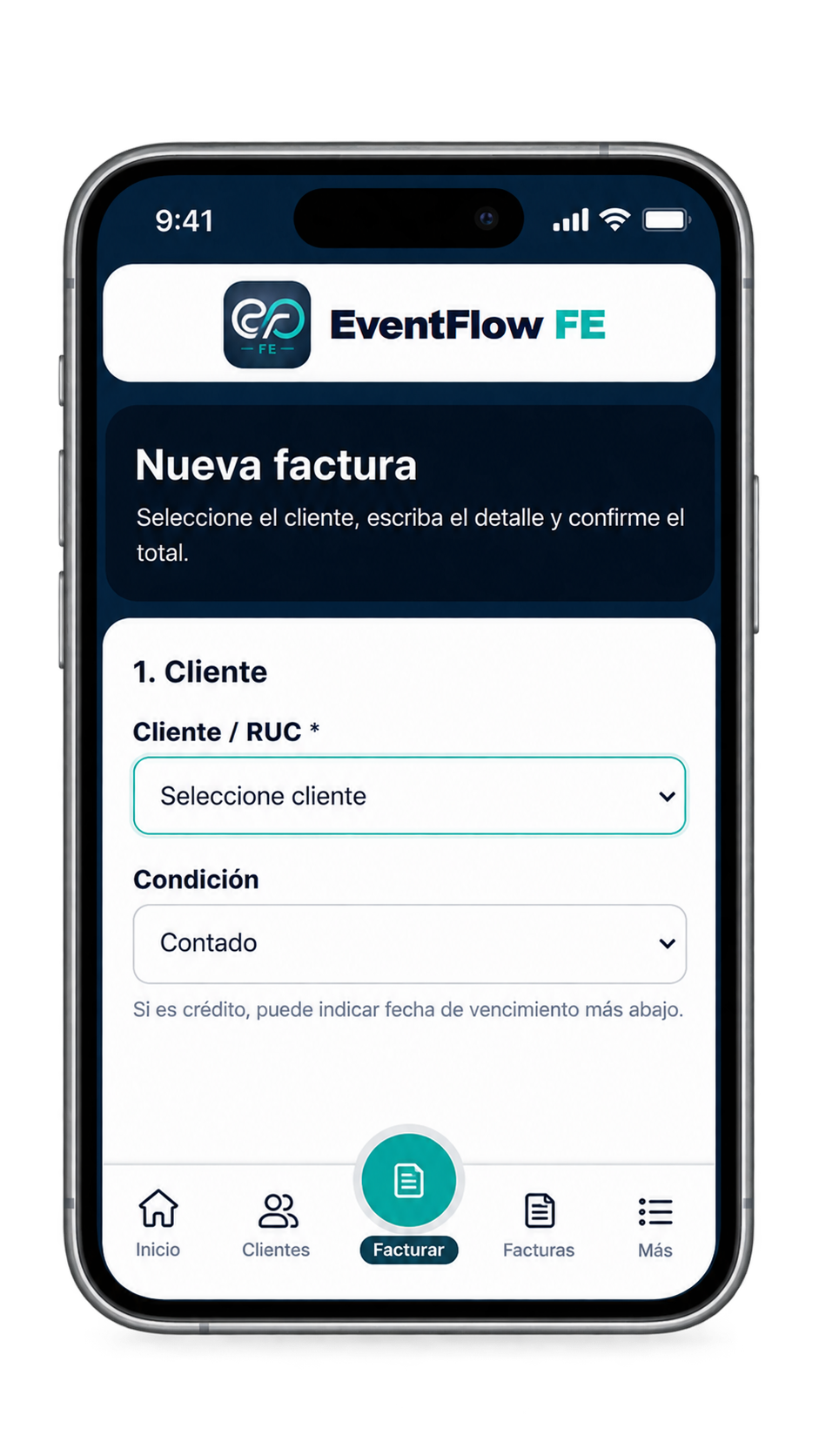
Start a new invoice and select a client previously saved in Clients.
Then choose the invoice condition:
- Cash. Use this option when the invoice is issued as a cash transaction.
- Credit. Use this option when the invoice is issued on credit. The due date can be indicated later in the invoice.
2. Invoice Detail
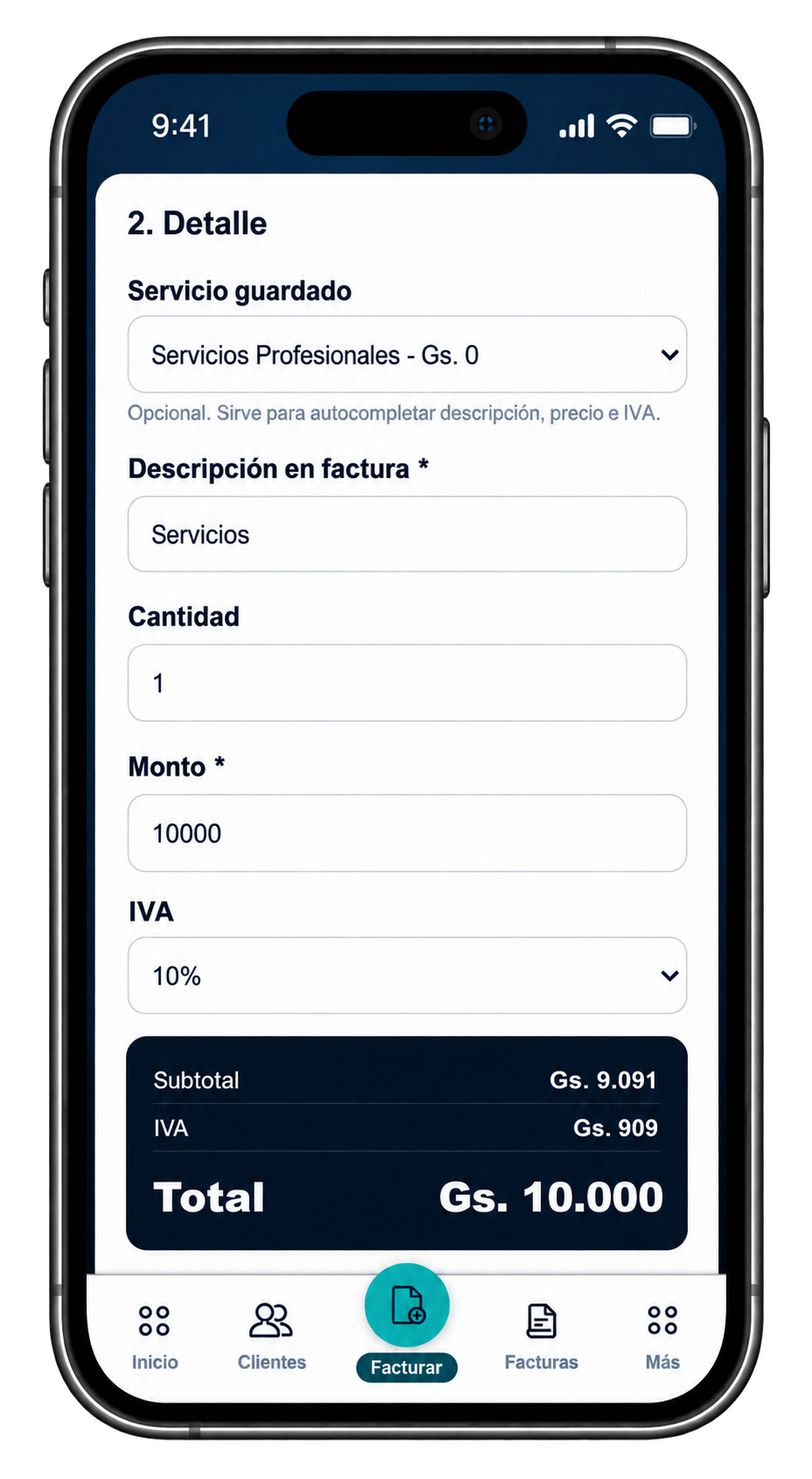
You can select a service previously saved in Services or enter the invoice detail directly.
When a saved service is selected, EventFlow FE can use its available information to help complete the description, price and VAT.
Complete or review:
- Invoice description. The description that will appear on the invoice.
- Quantity. The quantity being invoiced.
- Amount. Enter the amount of the invoice item.
- VAT. Select the applicable VAT rate when required.
EventFlow FE calculates the corresponding VAT and displays the subtotal, VAT amount and invoice total.
3. Document Information
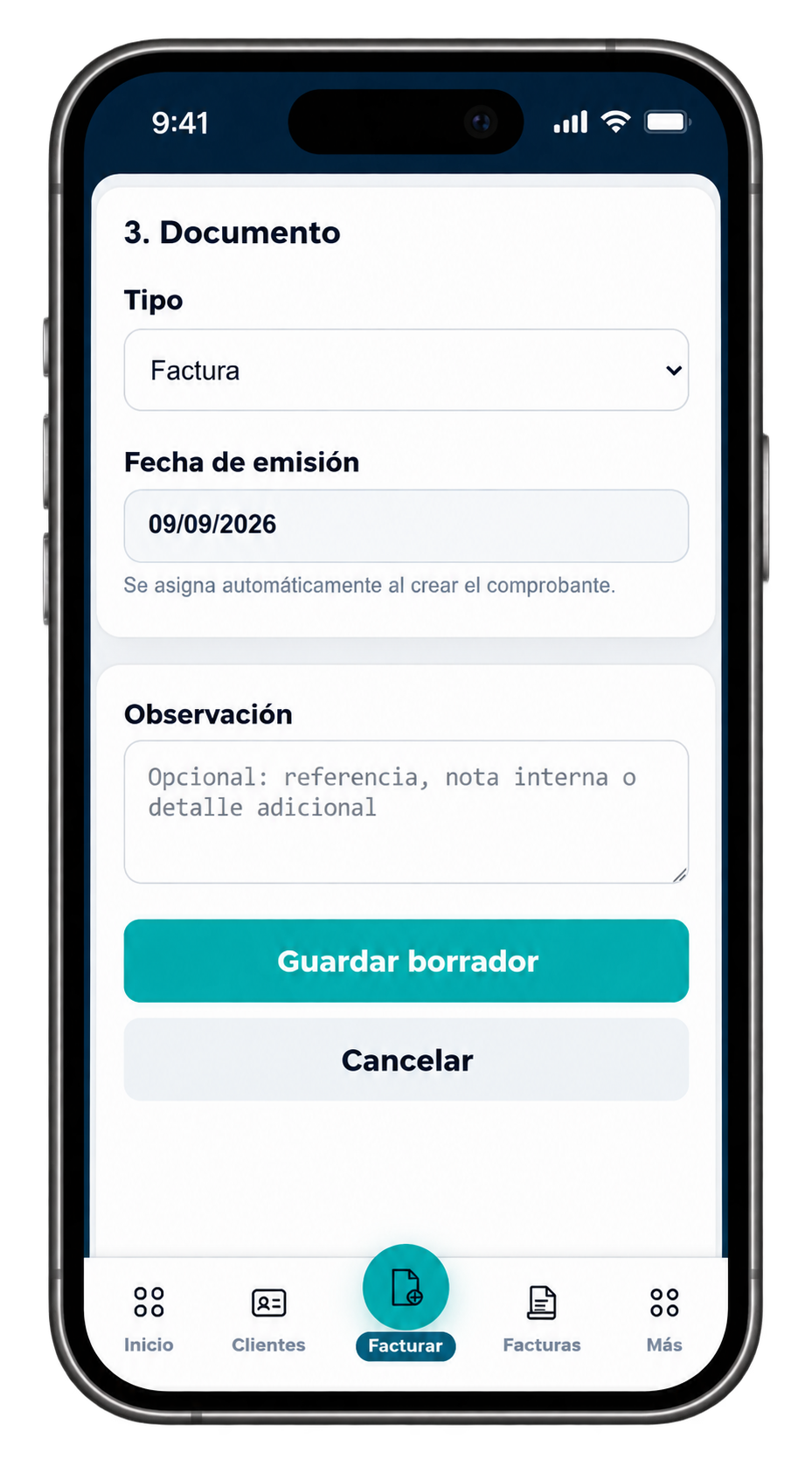
Review the document information before creating the draft.
- Type. The document type is shown as Invoice.
- Issue date. EventFlow FE assigns the issue date automatically when the document is created.
- Observation. Add an optional reference, internal note or additional detail when needed.
Select Save Draft to create the invoice in draft state.
4. Review Draft
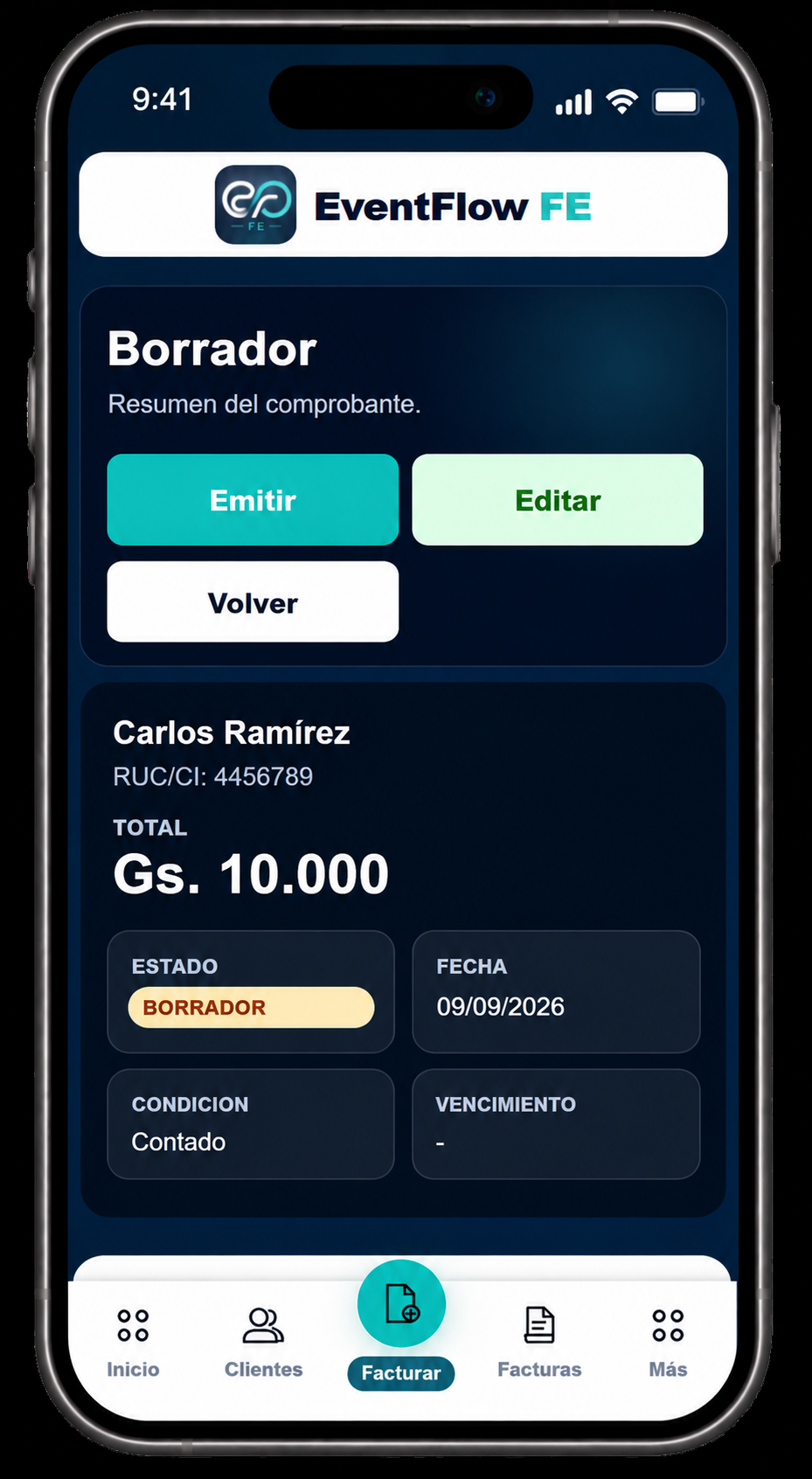
The invoice is first created in DRAFT state.
From the draft you can review the client, total, date, condition and other invoice information.
If something must be changed, select Edit and update the invoice. When the information is correct, select Issue.
5. Issue Invoice
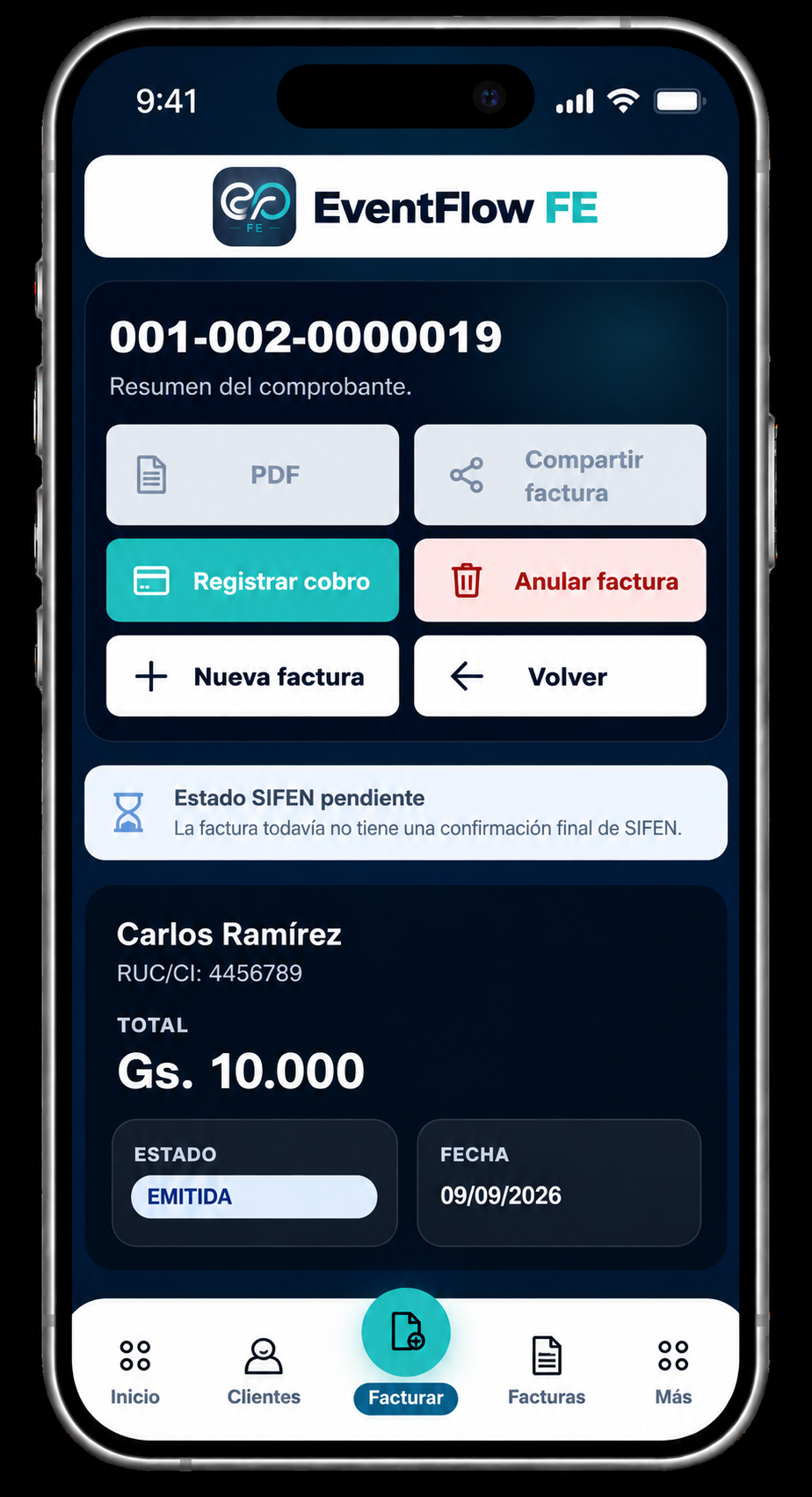
After you select Issue, the invoice leaves the draft state and begins fiscal processing.
While EventFlow FE is still waiting for the fiscal authority result, the interface shows SIFEN pending. At this point, the invoice does not yet have a final SIFEN confirmation.
Actions that depend on the final fiscal result, such as PDF and Share Invoice, remain unavailable while that confirmation is pending.
Once SIFEN returns the corresponding fiscal result, EventFlow FE updates the document status. The next section explains how to verify that result and, when the document is approved, send or share it with the client.